
Learn how to create and use Power Apps deep links to navigate directly to specific screens or records. This blog covers end-to-end guide with formulas, tips, and practical examples.
✨ Introduction
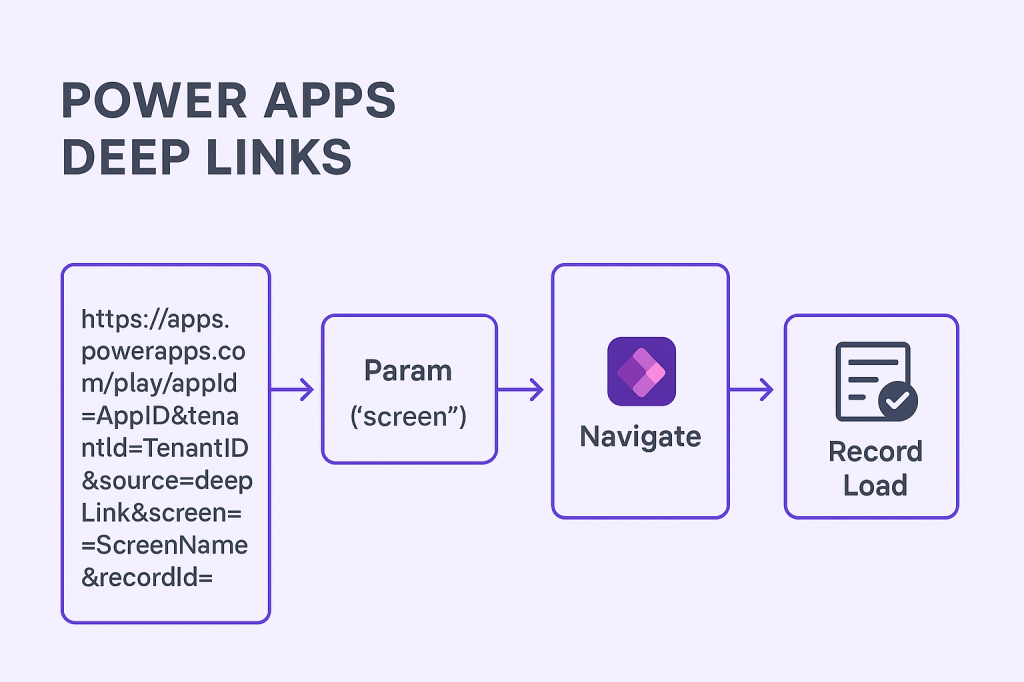
Power Apps Deep Links allow users to open an app directly to a specific screen or record, improving workflow efficiency and user experience.
Example Scenarios:
- Email notifications that open a specific form for approval
- Bookmarking a dashboard or record
- Integration with SharePoint, Teams, or other systems
In this tutorial, we’ll create a deep link system that navigates to a specific screen and loads a record dynamically.
1️⃣ Prepare the Data Source
We’ll use a SharePoint list called Tasks with the following structure:
| ID | Title | AssignedTo | Status |
|---|---|---|---|
| 1 | Approve Report | John | Pending |
| 2 | Review Budget | Sarah | Completed |
| 3 | Update Dashboard | Mike | Pending |
💡 Tip: Ensure the ID column is unique and used for referencing records.
2️⃣ Capture Parameters in App OnStart
We can capture screen and recordId parameters from the URL using Param().
OnStart formula:
// Capture screen parameter
Set(
    varScreen,
    Param("screen")
);

// Capture record ID parameter
Set(
    varRecordId,
    Param("recordId")
);

// Navigate to screen if parameter exists
If(
    !IsBlank(varScreen),
    Navigate(
        Switch(
            varScreen,
            "Home", HomeScreen,
            "EditTask", EditTaskScreen,
            HomeScreen
        )
    )
);

// Load record if recordId exists
If(
    !IsBlank(varRecordId),
    Set(
        varRecord,
        LookUp(Tasks, ID = Value(varRecordId))
    )
)
💡 Tip: Always validate parameters to prevent errors.
3️⃣ Create Screens
- HomeScreen – Dashboard of tasks
- EditTaskScreen – Form for editing a specific task
Bind form to variable varRecord:
- Select Edit Form → DataSource = Tasks
- Item = varRecord
This allows the form to automatically load the task based on the deep link.
4️⃣ Generate Deep Links Dynamically
a) Get your App ID
Method A — from the browser URL (fastest):
- Open your app in a browser (Play).
- Look at the address bar. You’ll see
.../play/appId=<GUID>... - Copy the GUID after
appId=→ that’s your App ID.
Method B — from Power Apps Studio (maker portal):
- Open the app in edit mode.
- Go to File → Details.
- Copy App ID.
// App OnStart
Set(varAppId, "00000000-0000-0000-0000-0000000000"); // paste your App ID
b) Get your Tenant ID
Method A — from the same play URL:
- In the address bar, find
tenantId=<GUID>and copy it.
Method B — from Microsoft Entra ID (Azure AD):
- Entra ID (Azure AD) → Overview → Tenant ID.
// App OnStart
Set(varTenantId, "11111111-1111-1111-1111-1111111"); // paste your Tenant ID
c) Decide the screen token you’ll pass
In your URL, you’re passing &screen=EditTask. Treat this as a token (a short string), not necessarily the literal screen control name. Then translate it in OnStart using Switch():
- In the left Tree view, click your target screen. In the top-left Name box, rename it clearly (e.g.,
scrEditTask). - In App → OnStart, handle the parameter:
Set(
    varScreen,
    Param("screen")
);
If(
    !IsBlank(varScreen),
    Navigate(
        Switch(
            varScreen,
            "EditTask",
            scrEditTask, // token -> actual screen control
            "Home",
            scrHome, // add more as needed
            scrHome // default/fallback
        ),
        ScreenTransition.Fade
    )
);
✅ Keep tokens short and URL-safe (no spaces). Use mapping to point tokens to actual screens.
d) Get the record ID (the primary key)
This depends on your data source:
A) SharePoint list
- Every row has a numeric ID column.
- In a Gallery or Form bound to that list, you can use:
ThisItem.ID(number)
URL side (building the link):
"&recordId=" & Text(ThisItem.ID)OnStart side (consuming it):
Set(varRecordId, Param("recordId"));
If(
    !IsBlank(varRecordId),
    Set(
        varRecord,
        LookUp(Tasks, ID = Value(varRecordId))
    )
);
B) Dataverse table
- Primary key is a GUID (unique identifier). Its display name usually ends with “Id”.
- How to find it:
- Maker portal → Tables → open your table (e.g., Tasks).
- Columns → filter by Data type = Unique identifier.
- Note the primary key column (e.g.,
'Task Id'or similar).
URL side (building the link):
"&recordId=" & Text(ThisItem.'Task Id') // use your table’s PK column display nameOnStart side (consuming it):
Set(varRecordId, Param("recordId"));
If(
    !IsBlank(varRecordId),
    Set(
        varRecord,
        LookUp(Tasks, 'Task Id' = GUID(varRecordId)) // replace 'Task Id' with your PK column
    )
);
💡 If the column name has spaces/special chars, wrap it in single quotes in formulas (as shown).
Put it all together (recommended pattern)
App → OnStart (run once after you paste your IDs):
// 1) Store constants
Set(varAppId,    "00000000-0000-0000-0000-000000000000"); // App ID
Set(varTenantId, "11111111-1111-1111-1111-111111111111"); // Tenant ID

// 2) Read params
Set(varScreen,   Param("screen"));
Set(varRecordId, Param("recordId"));

// 3) Navigate to requested screen
If(
    !IsBlank(varScreen),
    Navigate(
        Switch(
            varScreen,
            "EditTask", scrEditTask,
            "Home",     scrHome,
            scrHome
        ),
        ScreenTransition.Fade
    )
);

// 4) Load record (SharePoint example)
If(
    !IsBlank(varRecordId),
    Set(varRecord, LookUp(Tasks, ID = Value(varRecordId)))
);

// (Dataverse variant)
// If(
//     !IsBlank(varRecordId),
//     Set(varRecord, LookUp(Tasks, 'Task Id' = GUID(varRecordId)))
// );
Add a “Copy Deep Link” button on your HomeScreen gallery:
Button OnSelect formula:
Set(
    varDeepLink,
    "https://apps.powerapps.com/play/appId=" & /* App ID */
    varAppId &
    "&tenantId=" & /* Tenant ID */
    varTenantId &
    "&source=deepLink" &
    "&screen=EditTask" & /* Your target screen token */
    "&recordId=" & /* The record’s primary key */
    Text(ThisItem.ID)
);
Notify("Deep link copied to clipboard!", NotificationType.Success)- You can share this link via email or Teams.
- Clicking the link opens the app directly to the specific task.
⚠️ Quick note: Canvas apps don’t expose App.AppId or App.TenantId as properties you can read at runtime. The reliable approach is to copy them once (from the URL or app details) and store them in variables (e.g., varAppId, varTenantId) in App → OnStart.
5️⃣ Test the Deep Link
- Copy the generated URL.
- Open it in a browser.
- The app should open EditTaskScreen with the selected record loaded.
💡 Tip: Append ?screen=Home or ?screen=EditTask&recordId=1 to test manually.
6️⃣ Common Use Cases
- Approval workflows: Send a deep link in email for managers to open a specific approval form.
- Task tracking: Open dashboards or records directly from Teams or SharePoint.
- Integration: External systems can link directly to a record in Power Apps.

 Learning By Doing | Unlocking Power Platform
Leave a comment