
Ever thought about building a game inside Microsoft Power Apps? Let’s go beyond simple data-entry apps and create something interactive and fun — a dynamic Tic-Tac-Toe game.
This version isn’t limited to a boring 3×3 grid. You can let users pick their board size (3×3, 4×4, 5×5, or even bigger). On top of that, we’ll add a personal touch — player names. Instead of just “X” and “O,” you’ll see Alice vs Bob!
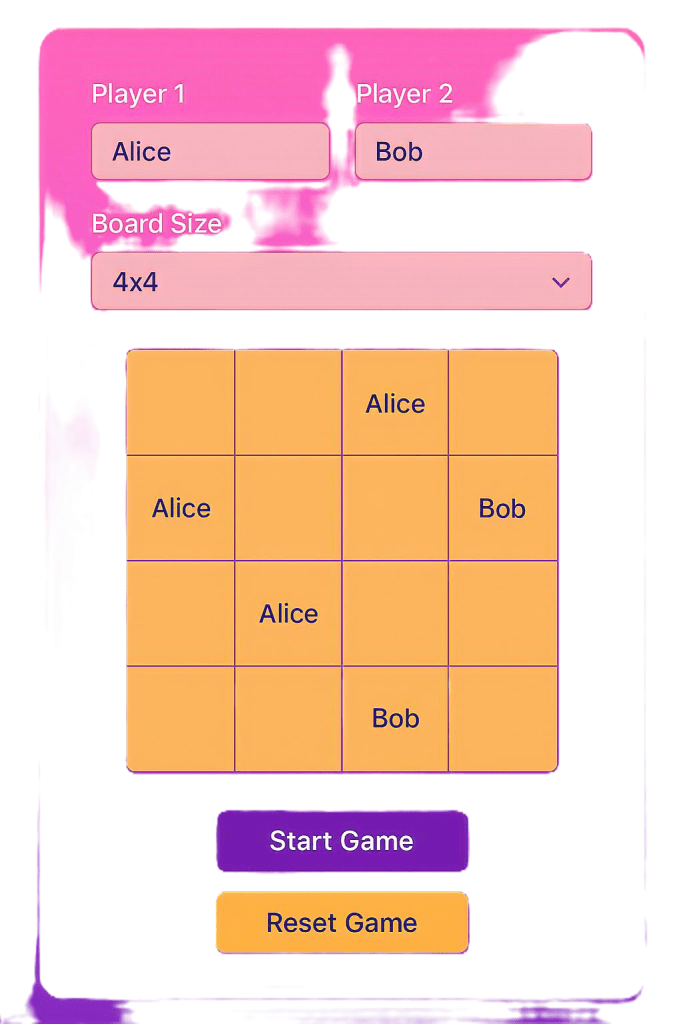
By the end of this guide, you’ll have:
- A dynamic board that adapts to size selection.
- Reusable formulas (optimized for readability).
- Win/draw detection that works for any board size.
- A fully interactive two-player game inside Power Apps.
Step 1: Game Setup — Players & Board Size
Let’s set up inputs so players can personalize their game.
1. Add two Text Input controls for player names:
TextInput_Player1 → Default: "Player 1"
TextInput_Player2 → Default: "Player 2"
2. Add a Dropdown for board size (
DropdownBoardSize) with these items:
Table({Size:"3x3"},{Size:"4x4"},{Size:"5x5"})3. Add a Start Game button (
ButtonStartGame). In its OnSelect:
Set(gblBoardSize, Value(Left(DropdownBoardSize.Selected.Size, 1)));
Set(gblPlayer1, TextInput_Player1.Text);
Set(gblPlayer2, TextInput_Player2.Text);

// Initialize board + reset game
InitializeBoard();
Notify("Game started: " & gblPlayer1 & " vs " & gblPlayer2);
Step 2: Reusable Board Initialization Function
Instead of repeating code for start/reset, let’s create one reusable formula.
Create a hidden button or component with this OnSelect and call it InitializeBoard:
ClearCollect(
    colGameBoard,
    ForAll(
        Sequence(gblBoardSize * gblBoardSize),
        {
            CellID: Value,
            Row: RoundUp(Value / gblBoardSize, 0),
            Column: Mod(Value - 1, gblBoardSize) + 1,
            Value: Blank(),
            Occupied: false
        }
    )
);

Set(gblCurrentPlayer, "X");
Set(gblGameOver, false);
Set(gblWinPlayer, Blank());
Set(gblDraw, false);
👉 You can now call InitializeBoard(); from both Start and Reset buttons.
Step 3: Building the Board with a Gallery
Insert a Vertical Gallery (GalleryGameBoard).
Set its Items to: colGameBoard
Set its WrapCount to: gblBoardSize
Inside the template – Add a Label.
Set Text to: ThisItem.Value
Style it with bold, center alignment, and conditional color:
If(ThisItem.Value="X", Red, If(ThisItem.Value="O", Blue, Gray))Step 4: Making Moves & Switching Players
Set the OnSelect of the gallery label to:
If(
    !ThisItem.Occupied && !gblGameOver,
    Patch(
        colGameBoard,
        ThisItem,
        { Value: gblCurrentPlayer, Occupied: true }
    );

    CheckWinDraw();

    If(
        !gblGameOver,
        Set(gblCurrentPlayer, If(gblCurrentPlayer="X","O","X"));
        Notify("It's " & If(gblCurrentPlayer="X", gblPlayer1, gblPlayer2) & "'s turn")
    )
)
Step 5: Smarter Win & Draw Detection
Instead of manually writing LookUps, use CountIf for cleaner logic.
Add a hidden button CheckWinDraw with this OnSelect:
// Rows
ForAll(
    Sequence(gblBoardSize),
    If(
        CountIf(colGameBoard, Row=Value && Value=gblCurrentPlayer)=gblBoardSize,
        Set(gblWinPlayer, gblCurrentPlayer); Set(gblGameOver,true)
    )
);

// Columns
ForAll(
    Sequence(gblBoardSize),
    If(
        CountIf(colGameBoard, Column=Value && Value=gblCurrentPlayer)=gblBoardSize,
        Set(gblWinPlayer, gblCurrentPlayer); Set(gblGameOver,true)
    )
);

// Diagonal: Top-left to bottom-right
If(
    CountIf(colGameBoard, Row=Column && Value=gblCurrentPlayer)=gblBoardSize,
    Set(gblWinPlayer,gblCurrentPlayer); Set(gblGameOver,true)
);

// Diagonal: Top-right to bottom-left
If(
    CountIf(colGameBoard, Row+Column=gblBoardSize+1 && Value=gblCurrentPlayer)=gblBoardSize,
    Set(gblWinPlayer,gblCurrentPlayer); Set(gblGameOver,true)
);

// Draw check
If(
    !gblGameOver && CountIf(colGameBoard, IsBlank(Value))=0,
    Set(gblDraw,true); Set(gblGameOver,true)
);

// Outcome message
If(
    gblGameOver,
    If(
        gblDraw,
        Notify("It's a Draw!"),
        Notify("🎉 " & If(gblWinPlayer="X", gblPlayer1, gblPlayer2) & " Wins!")
    )
)
Step 6: Resetting the Game
Add a Reset Button (ButtonResetGame) and set its OnSelect to:
InitializeBoard();
Notify("Game reset: " & gblPlayer1 & " vs " & gblPlayer2);
🎨 Highlight Winning Cells with Color
When a win is detected, we’ll mark the winning cells inside colGameBoard with a flag.
Step 1: Update CheckWinDraw()
When you detect a win (row, column, or diagonal), instead of just setting gblWinPlayer, also patch the winning cells with a WinHighlight flag.
// Example: Winning Row (player wins on row i)
ForAll(
    Sequence(gblBoardSize),
    If(
        // Check if all columns in this row are same as gblCurrentPlayer
        CountRows(
            Filter(colGameBoard, Row = ThisRecord.Value && Value = gblCurrentPlayer)
        ) = gblBoardSize,

        // Winner found, mark highlight
        Set(gblWinPlayer, gblCurrentPlayer);
        Set(gblGameOver, true);

        ForAll(
            Filter(colGameBoard, Row = ThisRecord.Value),
            Patch(colGameBoard, ThisRecord, {WinHighlight: true})
        )
    )
);
Do the same for columns and diagonals.
Step 2: Apply Conditional Formatting in the Gallery Cell
On the Rectangle/Label representing each cell:
Fill = If(ThisItem.WinHighlight,
          If(ThisItem.Value = "X", RGBA(0, 120, 215, 1), RGBA(220, 20, 60, 1)),
          RGBA(255,255,255,1))
👉 Alice (X) = Blue, Bob (O) = Red.
Conclusion: From Forms to Fun
Who knew Power Apps could do this? You’ve just built a dynamic, multi-board Tic-Tac-Toe game with custom player names. Along the way, you practiced:
- Collections & galleries
- Dynamic UI building
- Optimized formulas with
CountIf - Game logic inside Power Fx
Now it’s your turn — challenge a friend with a 5×5 game and see who wins first! 🏆

 Learning By Doing | Unlocking Power Platform
Leave a comment