
Introduction
Approval workflows are at the heart of daily business operations—be it handling expense claims, purchase orders, or leave requests. Unfortunately, these workflows are often repetitive, time-consuming, and prone to delays. With Microsoft Copilot Studio’s AI Approval feature, organizations can bring intelligence and efficiency to the process by combining AI-driven decision-making with human oversight.
In this blog, we’ll explore how to automate employee leave requests using AI Approvals in Microsoft Copilot Studio, making the workflow faster, smarter, and more reliable.
What Are AI Approvals?
AI Approvals are workflow stages in Agent Flows where decisions are automated using natural language instructions (prompts). The AI evaluates requests against predefined rules and produces a clear outcome: approve or reject.
This means routine, policy-driven approvals can be automated, while exceptions or sensitive cases can be escalated to managers or HR for review.
🚀 Build a Smarter PO Approval Process with Microsoft Power Automate and AI
Purchase Order (PO) processes are a classic back-office bottleneck: manual data entry, slow human verification of attachments (invoices/quotes), routing mistakes, and an opening for errors or fraud. What if the first reviewer wasn’t a person at all, but a reliable AI gatekeeper that checks the numbers, the vendor, and the attached document in seconds — and only escalates the edge cases to humans? 🚀
Microsoft’s Agent Flows (in Copilot Studio / Power Automate) introduce AI stages that can act exactly like that: they accept PO fields and document attachments as inputs, apply business rules (your prompt), and output a clear Approve / Reject / Escalate decision — which you then wire into multi-stage human approvals and status updates. This lets you build a fast, auditable, and fraud-resistant PO approval pipeline.
This post is a practical, step-by-step guide for technical professionals to build a PO approval workflow using AI approvals in Agent Flows. You’ll get: the conceptual model, exact AI instructions to paste into an AI stage, conditional routing logic, and UI-style mockups/diagrams you can follow to implement the flow.
The AI Approval Stage: The New Gatekeeper for Your Workflows
Think of the AI Stage as a digital gatekeeper that performs fast, deterministic checks before routing a PO for human review.
What the AI Stage does for a PO workflow
- It automatically validates structured PO data (e.g.,
PO Amount,Vendor Name,PO Number) against document data (the attached invoice/quote).
- It returns a discrete decision (e.g., Approve / Reject / Needs Manual Review) with a rationale you can log.
- It lets you skip or gate subsequent human approvals when everything is clean, and escalate when mismatches or risk factors appear.
Key components of an AI Stage (in this context)
- Instructions (Prompt): The business rules the AI follows (for example: “Approve if POAmount matches invoice total and VendorName matches invoice vendor, and POAmount < $10,000”).
- Dynamic Content: Real PO fields from the trigger (SharePoint/Dataverse/Forms) are fed in as tokens.
- Document/Image Validation: The AI reads the attached invoice/quote (OCR), extracts key fields (total, vendor, invoice number, date), and compares them to the PO values.

Creating a Smart PO Approval Workflow
Below is a hands-on walkthrough you can follow in Copilot Studio / Power Automate (Agent Flows). I’ll show step names, sample expressions, and a mock UI screenshot of the AI stage configuration.
Step 1 — Setting up the Flow Trigger
Trigger options (pick one):
- SharePoint list:
When an item is created(fields: PO Number, PO Amount, Vendor Name, Requestor, Attachment (Invoice/Quote)).
- Dataverse table:
When a row is added(same fields).
- Forms / Power Apps: when a user submits a PO request form.
Required fields on the PO record:
PONumberPOAmount(decimal)VendorName(text)OrderDate(date)Attachment(invoice/quote — file)RequestedBy(user)
Step 2 — The Initial AI Approval Stage: Data & Document Validation
Stage name: Validate PO Request
Stage type: AI Stage (Agent Flow > Add stage > AI)
Copy-paste AI instructions (business prompt)
Put the following text into the AI stage instructions area — this is the single most important artifact in the flow. It tells the model exactly what to check.
You are an approval gatekeeper for Purchase Orders.

Inputs:
- PO Amount (field): {POAmount}
- Vendor Name (field): {VendorName}
- PO Number (field): {PONumber}
- Invoice attachment: {InvoiceFile} (the invoice/quote PDF or image)

Instructions:
1. Extract the invoice total amount and vendor name from the attached invoice/quote using OCR.
2. Compare the extracted invoice total to the PO Amount:
   - If the invoice total equals the PO Amount (allow +/- $0.50 tolerance for rounding) mark as MATCH.
   - If mismatch, compute the difference and include it in the rationale.
3. Compare the extracted vendor name to the Vendor Name field:
   - Use case-insensitive matching and accept common abbreviations (e.g., "Corp." == "Corporation").
4. Business rules:
   - **Approve** if ALL of the following are true:
     a) Invoice total MATCHES PO Amount within tolerance.
     b) Vendor Name matches invoice vendor.
     c) PO Amount < $10,000.
   - **Escalate to Finance** if:
     a) Invoice total MATCHES and PO Amount >= $10,000.
   - **Reject** if:
     a) Invoice vendor does NOT match Vendor Name, OR
     b) Invoice total is significantly different (> $50 difference).
   - **Request Manual Review** if:
     a) OCR confidence is low, or
     b) Document is unreadable, or
     c) Vendor name ambiguous.
5. Output format (JSON):
   {
     "decision": "Approve" | "Reject" | "Escalate" | "ManualReview",
     "confidence": 0.0-1.0,
     "rationale": "short human-readable explanation",
     "extractedInvoiceTotal": 0.00,
     "extractedVendorName": "string"
   }
Important: Replace
{POAmount},{VendorName},{PONumber},{InvoiceFile}with the actual dynamic content tokens from your trigger (Power Automate will show these tokens in the designer).
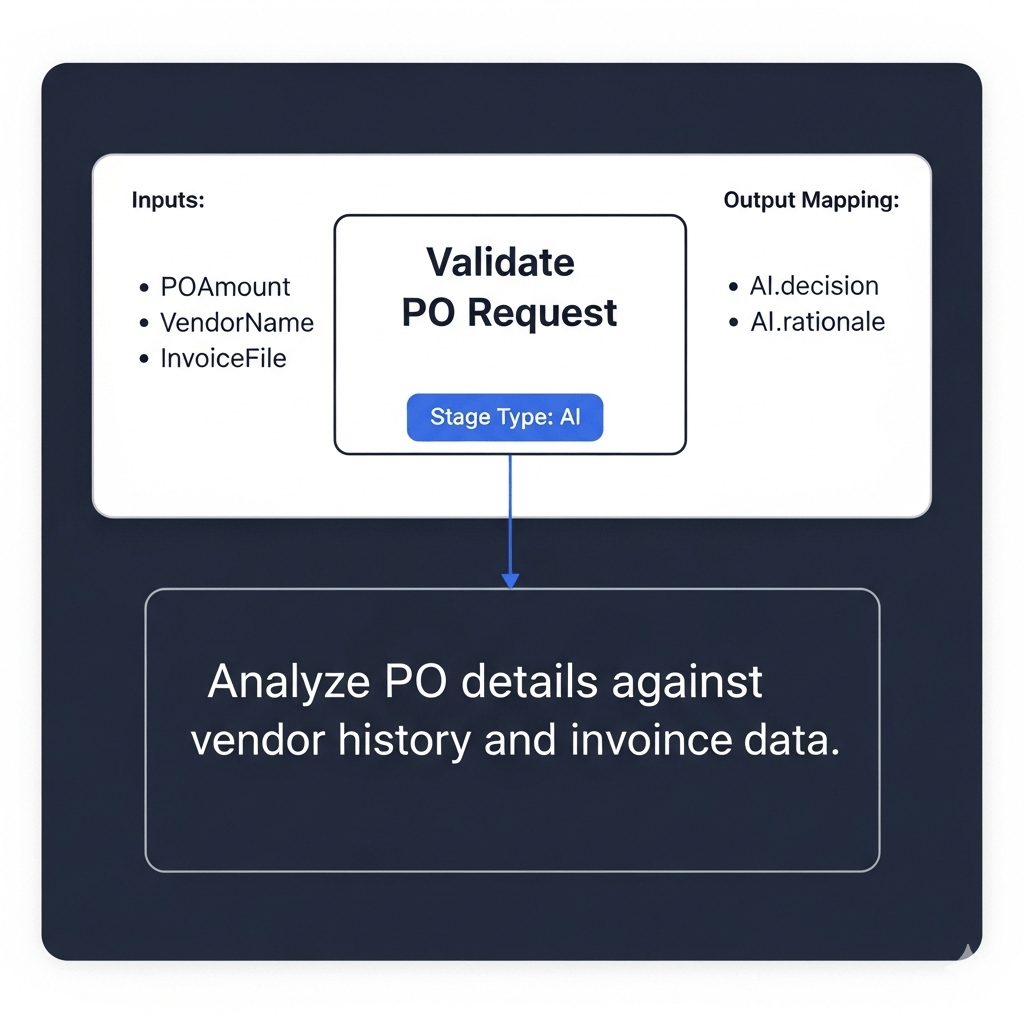
Dynamic content placeholders example
POAmount→triggerOutputs()?['body/POAmount'](SharePoint)VendorName→triggerOutputs()?['body/VendorName']InvoiceFile→ attachments array:triggerOutputs()?['body/Attachments'][0](or the attachment selector in the UI)
Step 3 — Building a Multi-Stage Human Approval Hierarchy
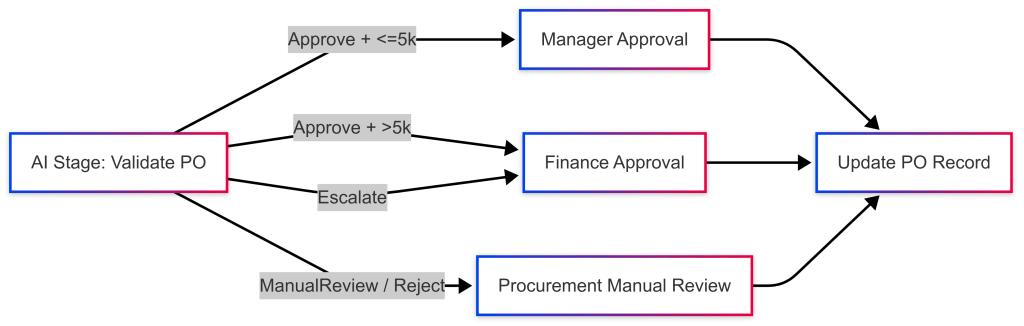
Use Conditions (between stages) to route the flow based on the AI stage output.
Conditional routing (example logic)
- Condition A (from AI stage output):
- If
AI.decision == "Approve"andPOAmount <= 5000→ Manager Approval (single approver).
- If
- Else If
AI.decision == "Approve"andPOAmount > 5000→ Finance/Director Approval (Finance group or Director). - Else If
AI.decision == "Escalate"→ Finance Approval (mandatory). - Else If
AI.decision == "ManualReview"orAI.decision == "Reject"→ Procurement Manual Review (Procurement team investigates).
Example Power Automate condition expression (pseudo)
Condition: equals(outputs('AI_Validate_PO')?['decision'], 'Approve')
  if true:
    Condition2: greaterOrEqual(outputs('Get_PO')?['body/POAmount'], 5000)
      if true -> Route to Finance Approval
      if false -> Route to Manager Approval
  if false:
    if equals(outputs('AI_Validate_PO')?['decision'], 'ManualReview') -> Route to Procurement Review
    else if equals(..., 'Reject') -> Set status to Rejected and notify requester
Manager Approval / Finance Approval stages
- Use Manual Stage (Agent Flow) or Approvals – Start and wait for an approval (classic action) depending on your design.
- Capture approver comments, approver identity, and timestamp.
- Add timeouts and automatic reminders for SLA enforcement.
Agent Flows support conditions and multi-stage approval logic to determine routing dynamically. Use this to implement your high-value routing rules.
Step 4 – Updating the PO Status
At the end of the last stage (whether human or AI), add a final action to persist the result.
Example fields to update
ApprovalStatus→Approved/Rejected/Pending Finance Review/Pending Manual ReviewApprovedBy→ approver email or groupApprovalDate→ utcNow()ApprovalNotes→ combine AI rationale + human comments
Power Automate action:
- SharePoint:
Update item(set fields) - Dataverse:
Update a row(set columns) - Teams / Email: send a notification with the final status and link to PO.
Sample Update expression (pseudo):
{
  "ApprovalStatus": "@outputs('AI_Validate_PO')?['decision'] == 'Approve' ? if(greater(triggerBody()?['POAmount'],10000),'Pending Finance Review','Approved') : outputs('AI_Validate_PO')?['decision']",
  "ApprovalNotes": "@concat(outputs('AI_Validate_PO')?['rationale'], ' | HumanComments: ', outputs('ManualApproval')?['comments'])"
}
Error handling & fallback patterns
- Low OCR confidence → set
ApprovalStatus = Pending Manual Review, attach AI confidence score to record, notify procurement. - Multiple attachments → prefer invoices with a matching PONumber in the extracted invoice, otherwise flag.
- Audit logging: store AI output JSON (decision, confidence, extracted fields) in a hidden audit column for compliance and traceability.
- Retries: if the AI stage fails (transient error), re-run the stage once before moving to manual review.
Benefits and Real-World Applications
- Fraud Prevention — automated document vs. data matching catches mismatched invoices and spoofed vendors early. ✅
- Time Savings — routine, low-risk POs get auto-validated and routed quickly; humans focus on exceptions. ⏱️
- Increased Accuracy — automated OCR + rules minimize human errors in cross-referencing. 📈
- Audit Trail — AI outputs (rationale + confidence) provide machine-generated evidence you can store. 📁
Real-world uses beyond simple PO approval
- Invoice matching before payment runs.
- Vendor onboarding checks (validate legal name vs documents).
- Contract change approvals (compare contract vs request).
- Expense report pre-validation.
The feature set for AI stages and multi-stage approvals is part of Copilot Studio/Agent Flows and is specifically designed for these automated decision scenarios. Use the official docs and Agent Academy for deeper platform-specific configuration examples.

 Learning By Doing | Unlocking Power Platform
Leave a comment